Laser 101: FAQs & Tips for Laser Cutting
New to laser cutting? Start here. We explain the basics—how CO₂ lasers cut and engrave, which materials are safe, and how to set up your file. You’ll learn the difference between cutting and engraving, why vector files matter, and simple ways to avoid burn marks or rough edges. We also cover safety, ventilation, and tips for better results. Whether you plan to rent a laser or have us do the work, this quick guide will help you make confident choices and get cleaner parts.
FAQs
- Cutting vs. engraving—what’s the difference?
Cutting goes through the material; engraving marks the surface. - Which materials are safe to cut?
Common options include acrylic, wood, cardboard, some fabrics, and other laser-safe materials. Avoid PVC and unknown plastics. - Why won’t JPEG or PNG work for cutting?
They don’t contain paths. Laser cutters need vector files like AI, DXF, or PDF. - What software should I use?
Illustrator or LightBurn are common choices. Export clean vectors at the correct scale. - Any quick tips for cleaner results?
Use the right material, nest parts to save stock, keep optics clean, and choose sensible power/speed settings.
Laser Engraving vs. Laser Cutting: What's the Difference?
Laser engraving and laser cutting both use laser technology, but they're fundamentally different operations with different results and applications. Understanding the difference will help you choose the right process for your project and set proper expectations.
Laser Cutting: Complete Separation
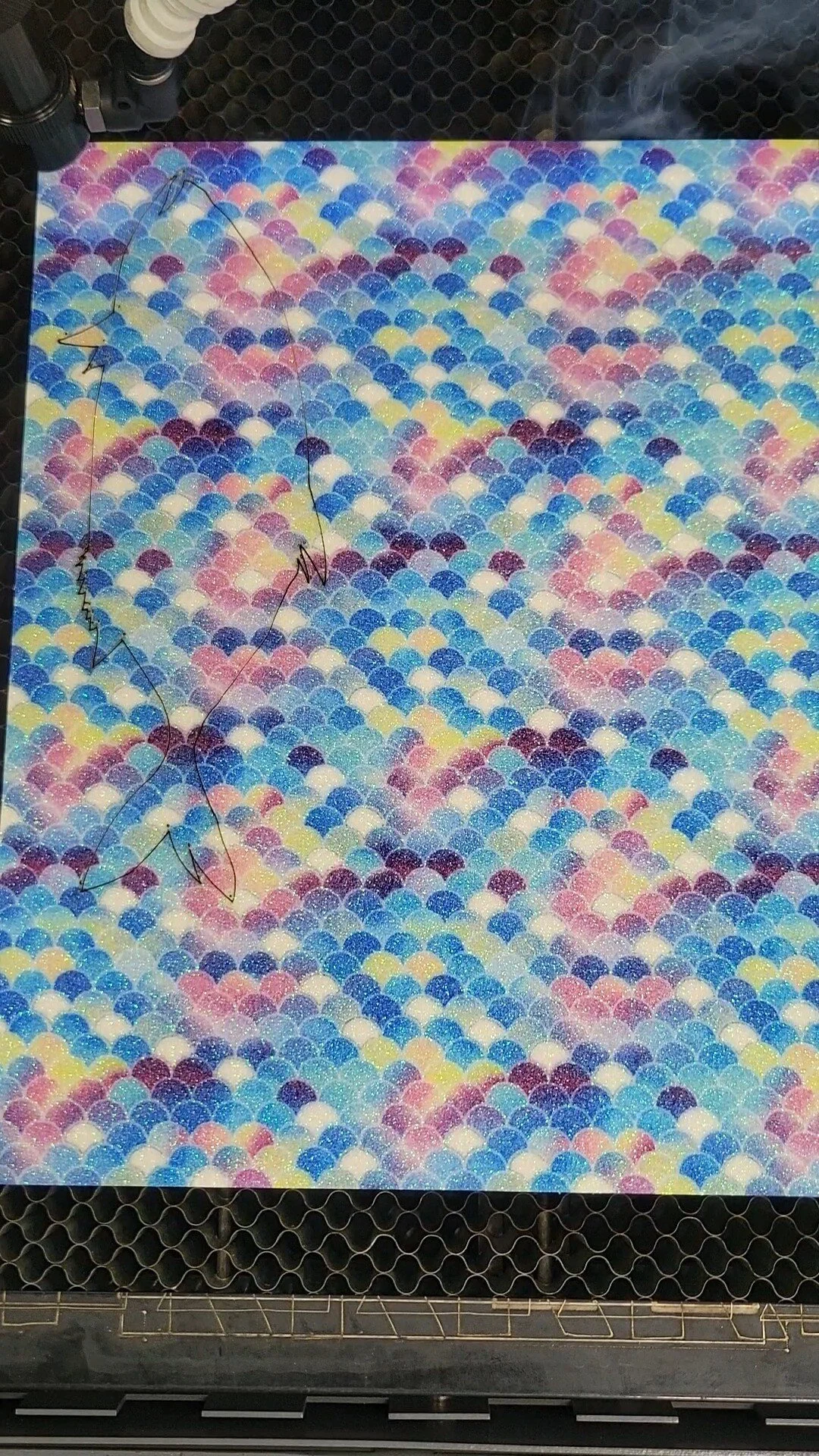
Laser cutting directs a high-powered beam to follow a precise path through material, completely removing material along that path. The result is two separate pieces—the cut-out shape and the remaining material with a hole or opening. Cutting requires enough laser power to fully penetrate the material. Cut edges have a characteristic slightly charred appearance, but they're clean and precise.
Laser Engraving: Surface Removal
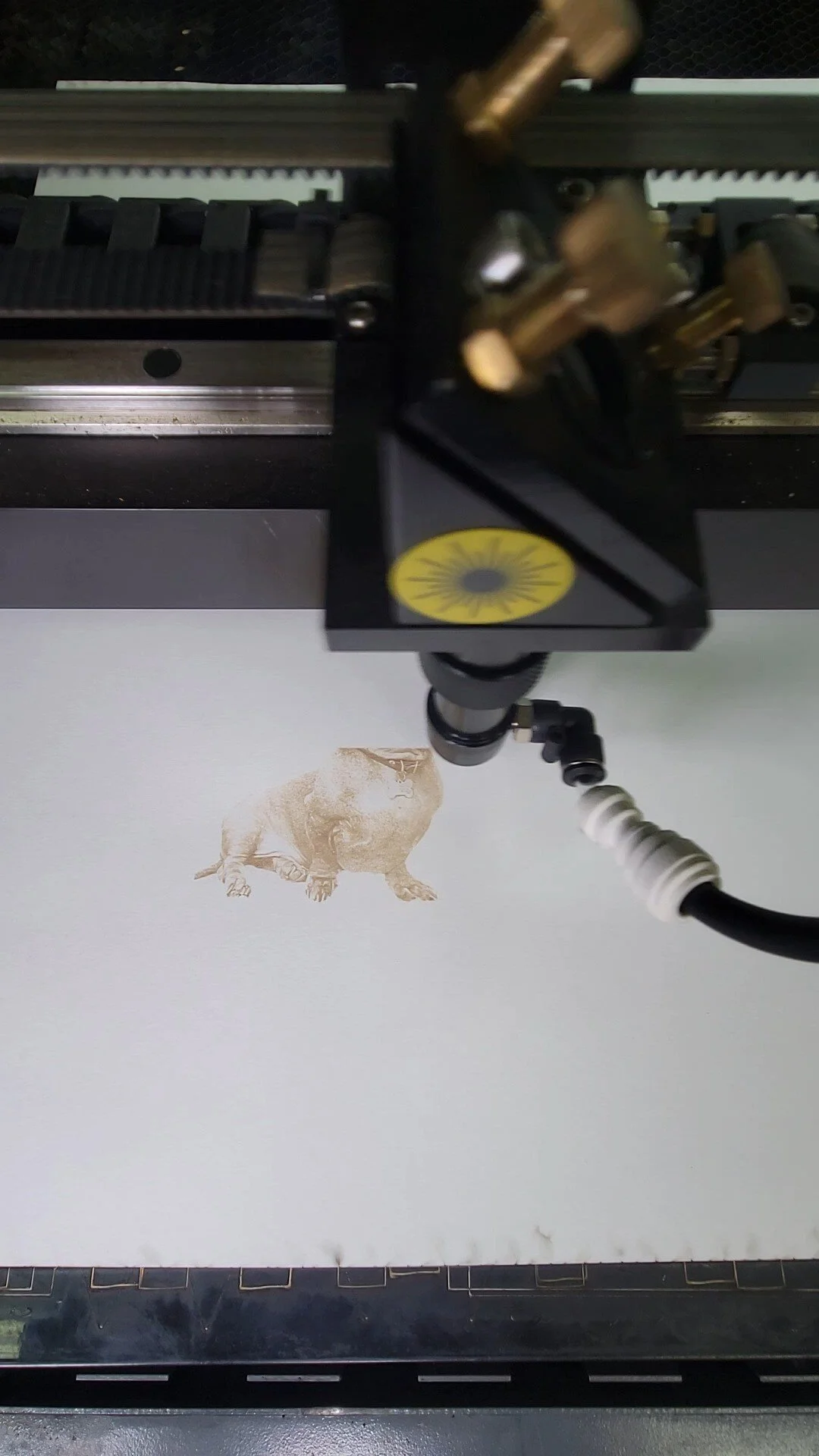
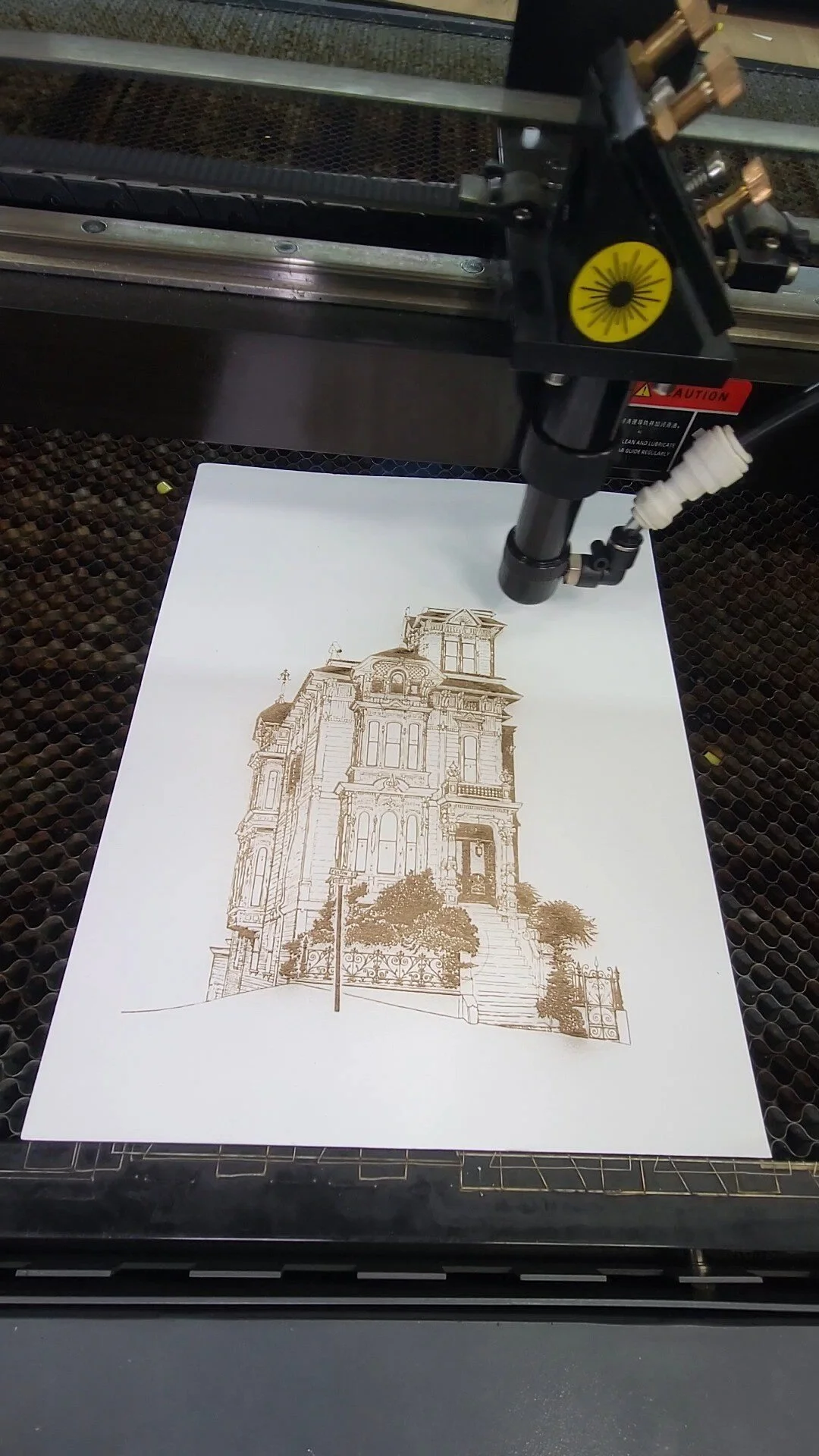
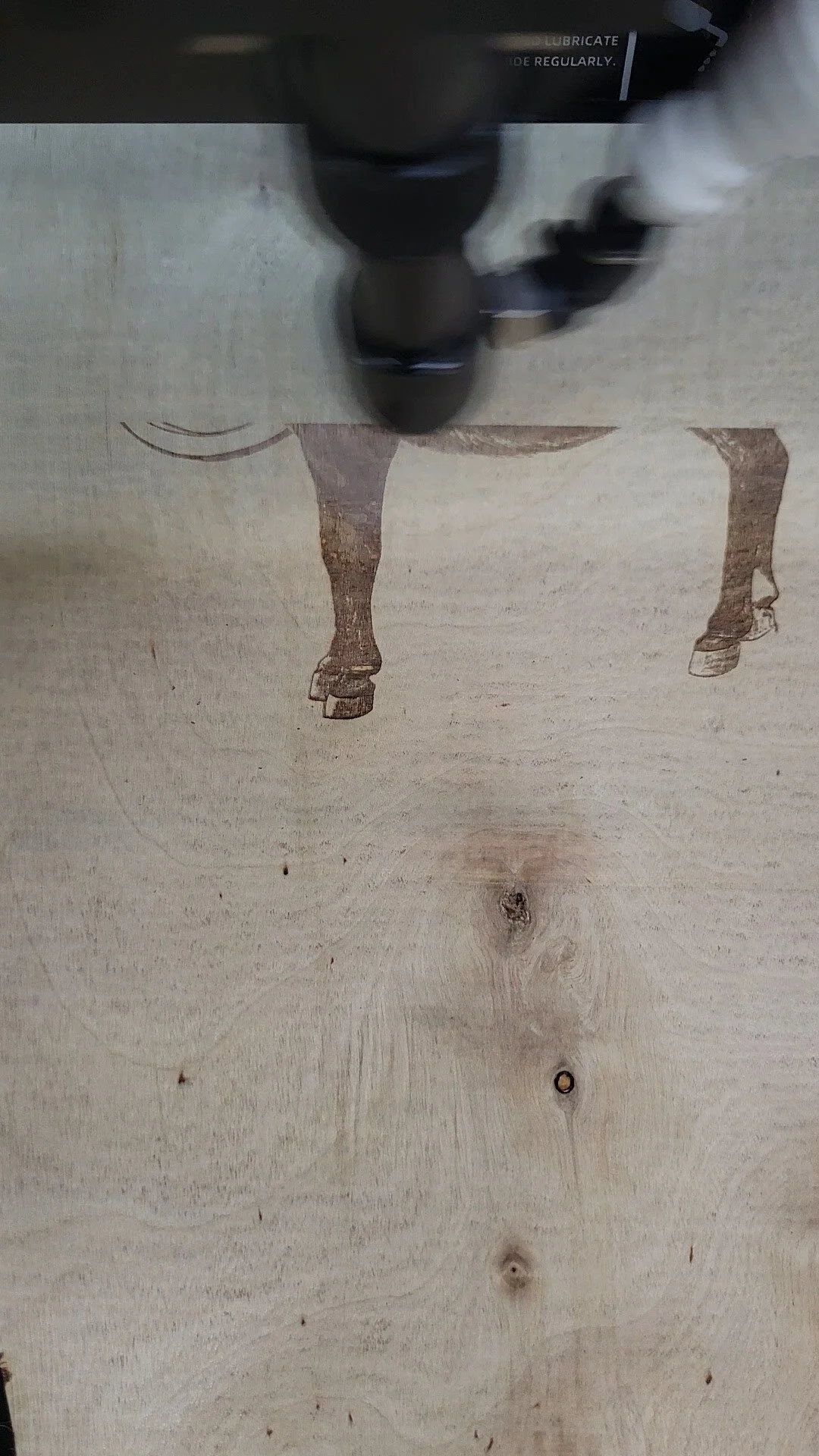
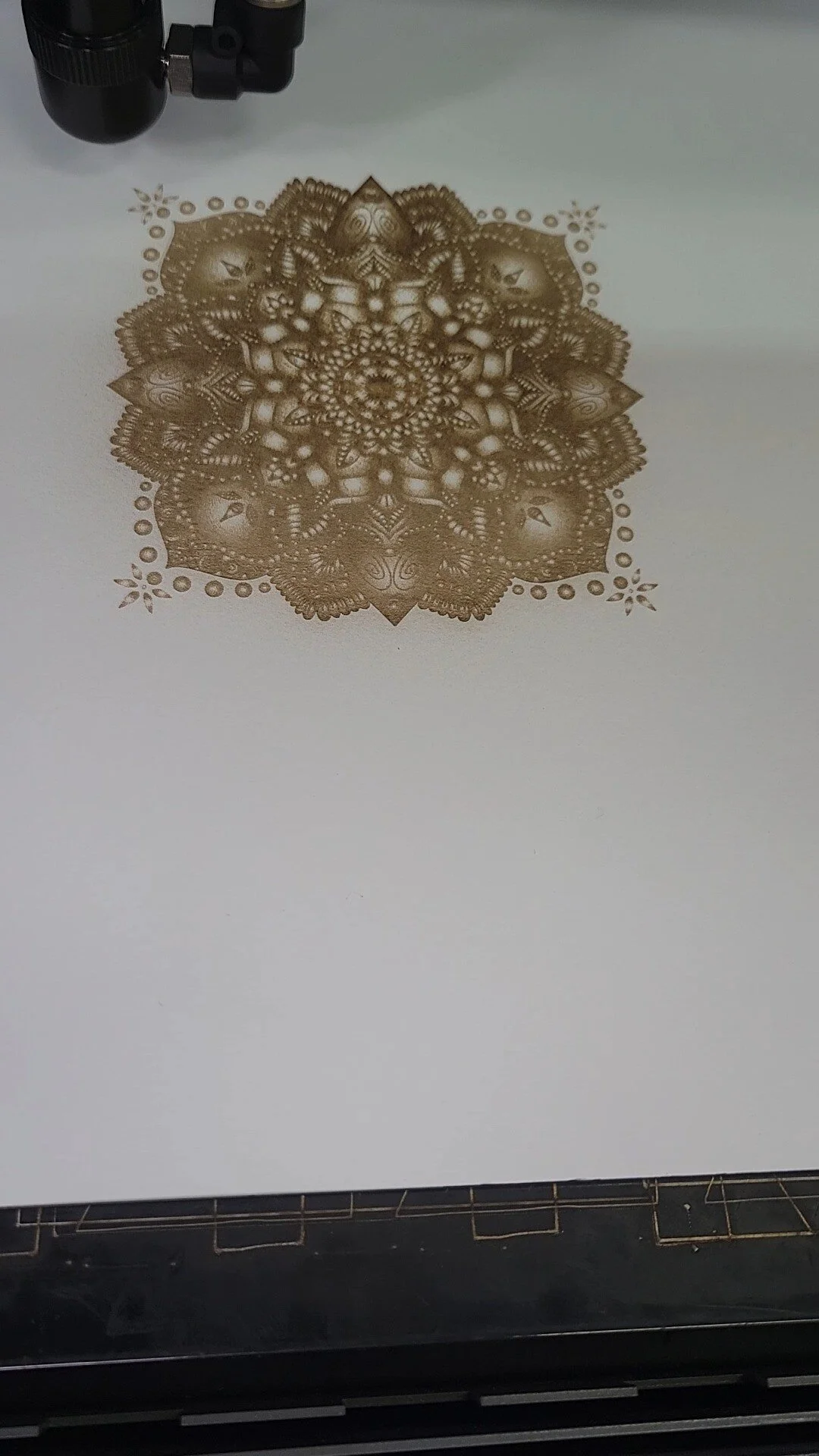
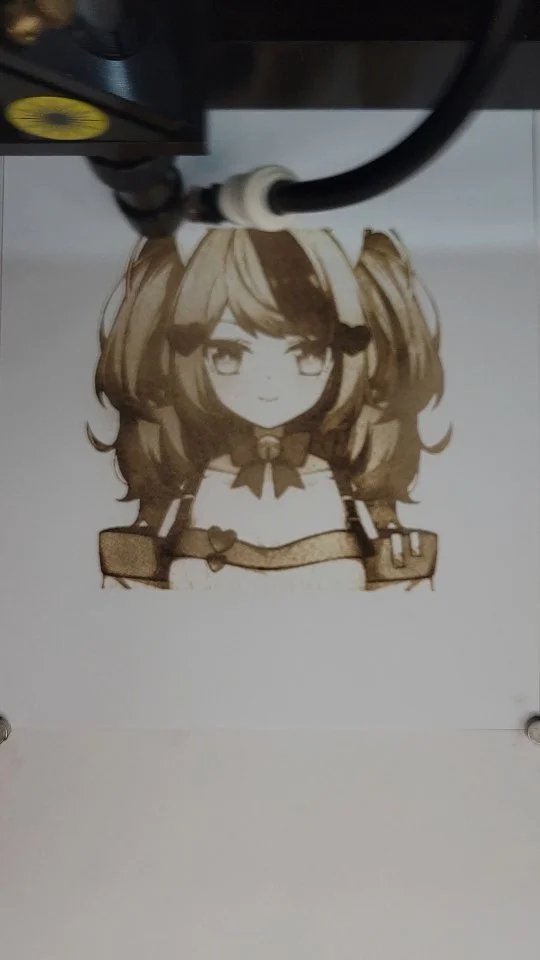
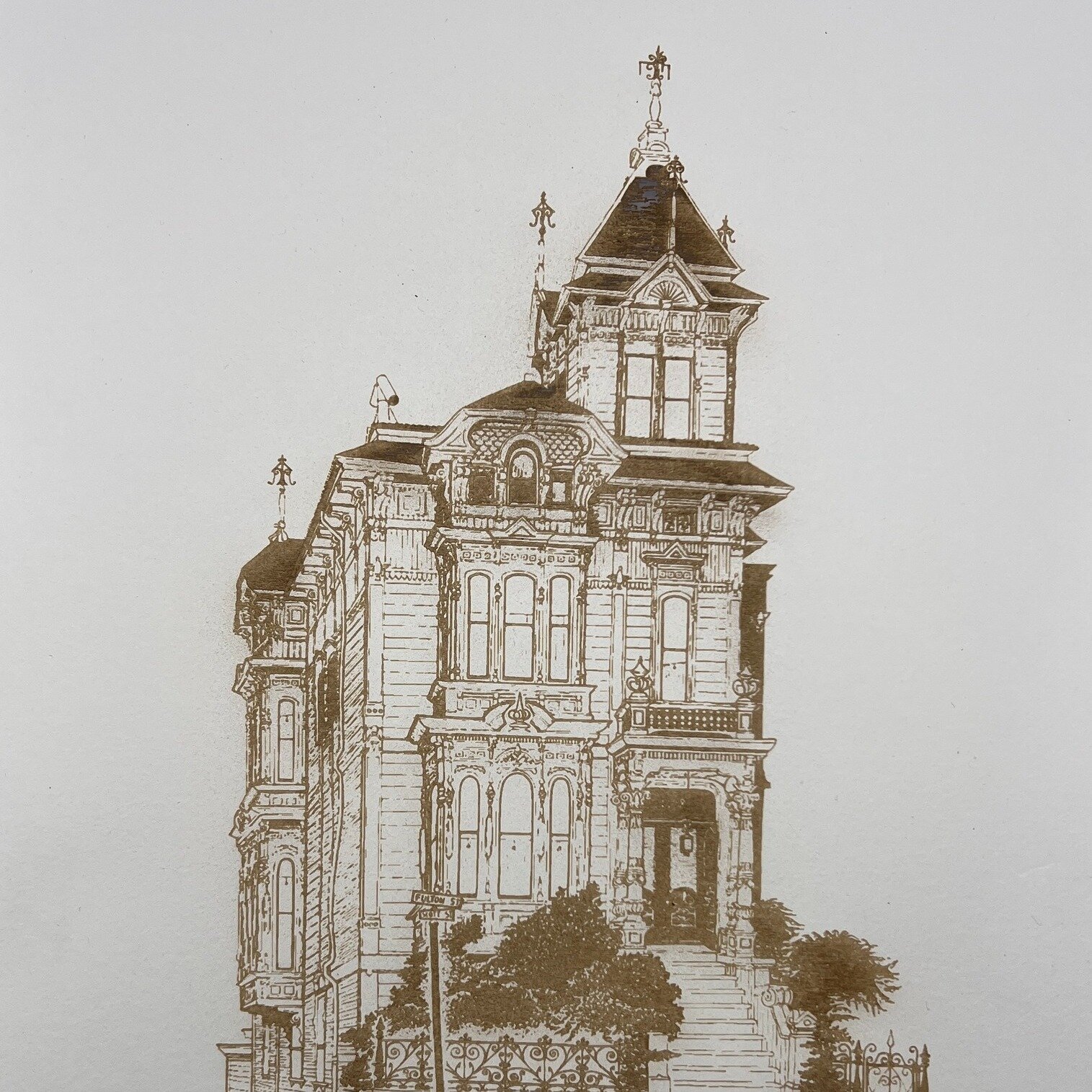
Laser engraving removes material from the surface without cutting all the way through. The laser pulses across an area, vaporizing just the surface layer. The result is a recessed pattern, text, or image on the surface. Engravings can be very detailed because the laser doesn't need to penetrate fully. You're essentially etching a design onto the material.
When to Choose Cutting
Choose cutting when you need to create distinct pieces—custom shapes, interlocking components, letters or logos that are separate from the background material. Cutting is ideal for creating dimensional pieces or assemblies where parts fit together.
When to Choose Engraving
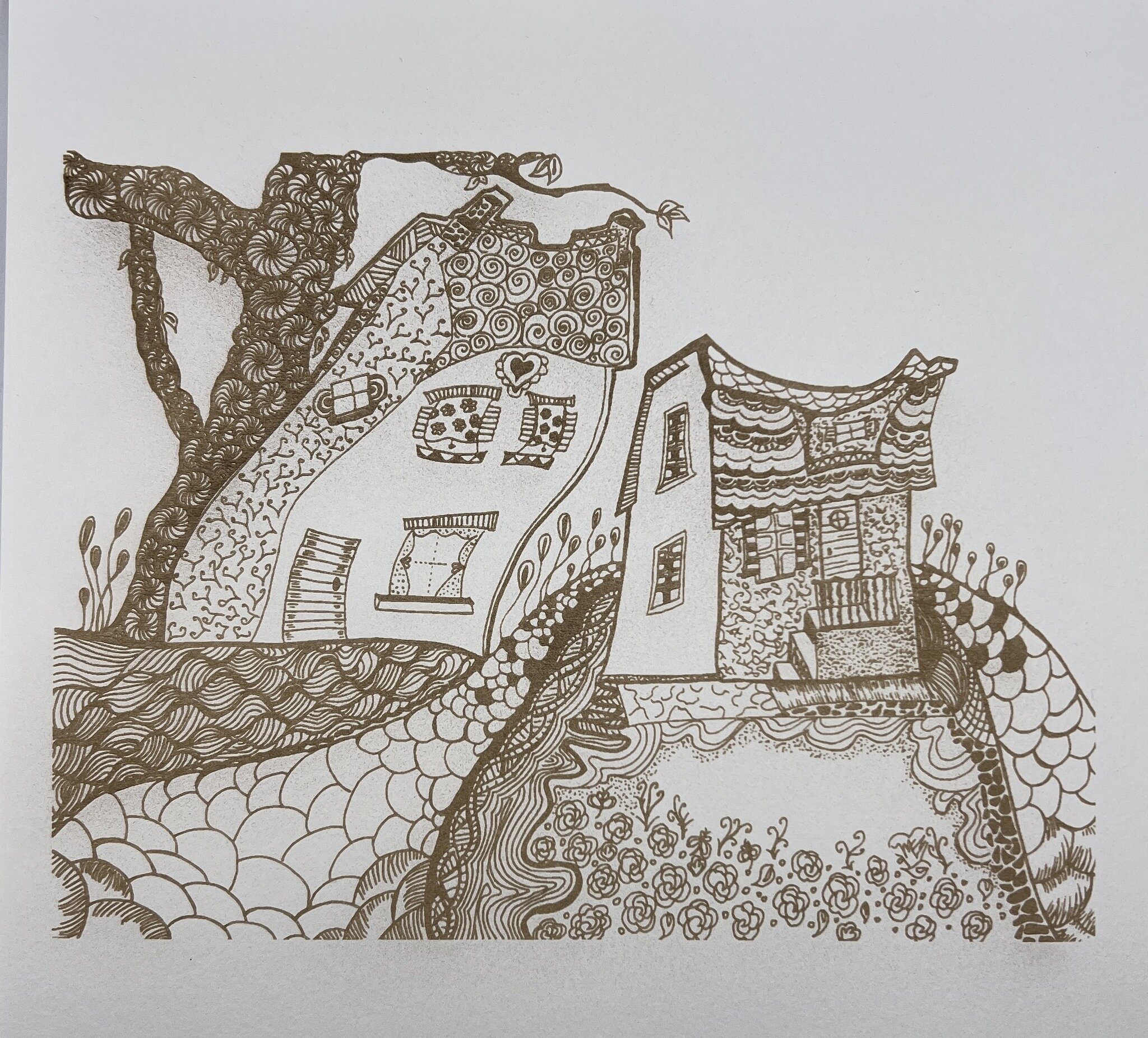
Choose engraving when you want to add detail or personalization without separating material. Engraved text on a plaque. Detailed artwork engraved on acrylic. A logo engraved into wood. Engravings work beautifully for photography, fine detail, or surface decoration. Engravings can incorporate gradients and shading in ways cutting cannot.
Material Considerations
Most materials work with both cutting and engraving, but response differs. Acrylic cuts cleanly but can be fragile if cut into small pieces. Engraved acrylic looks sophisticated. Wood cuts beautifully and engravings add detail. Leather and rubber respond well to both. Discuss material options with your laser shop.
Combining Cutting and Engraving
Many projects combine both: an acrylic shape (cut) with engraved details on the surface. A wood sign (cut) with engraved text. This combination approach uses the strengths of both processes. Design files can include both cut and engrave paths, processed in a single job.
Cost and Timeline
Cutting is generally faster for simple shapes because the laser follows distinct paths. Engraving can take longer if there's extensive detail or shading. Simple engravings are fast. Complex engravings with photo-like detail take more time. Costs reflect the time required.
Still uncertain which process suits your project? American Laser Cutter can advise. Visit americanlaserco.com to discuss your design and get recommendations.
LASER CUTTING RESOURCES
This website is fantastic to pick up parts for your laser cutter.
This is a fantastic replacement software for laser cutters
https://lightburnsoftware.com/
This is a link to RdWorks software
https://www.ruidacontroller.com/download/
rescue files for RDworks and lightburn (still adding files)