Laser 101: FAQs & Tips for Laser Cutting
New to laser cutting? Start here. We explain the basics—how CO₂ lasers cut and engrave, which materials are safe, and how to set up your file. You’ll learn the difference between cutting and engraving, why vector files matter, and simple ways to avoid burn marks or rough edges. We also cover safety, ventilation, and tips for better results. Whether you plan to rent a laser or have us do the work, this quick guide will help you make confident choices and get cleaner parts.
FAQs
- Cutting vs. engraving—what’s the difference?
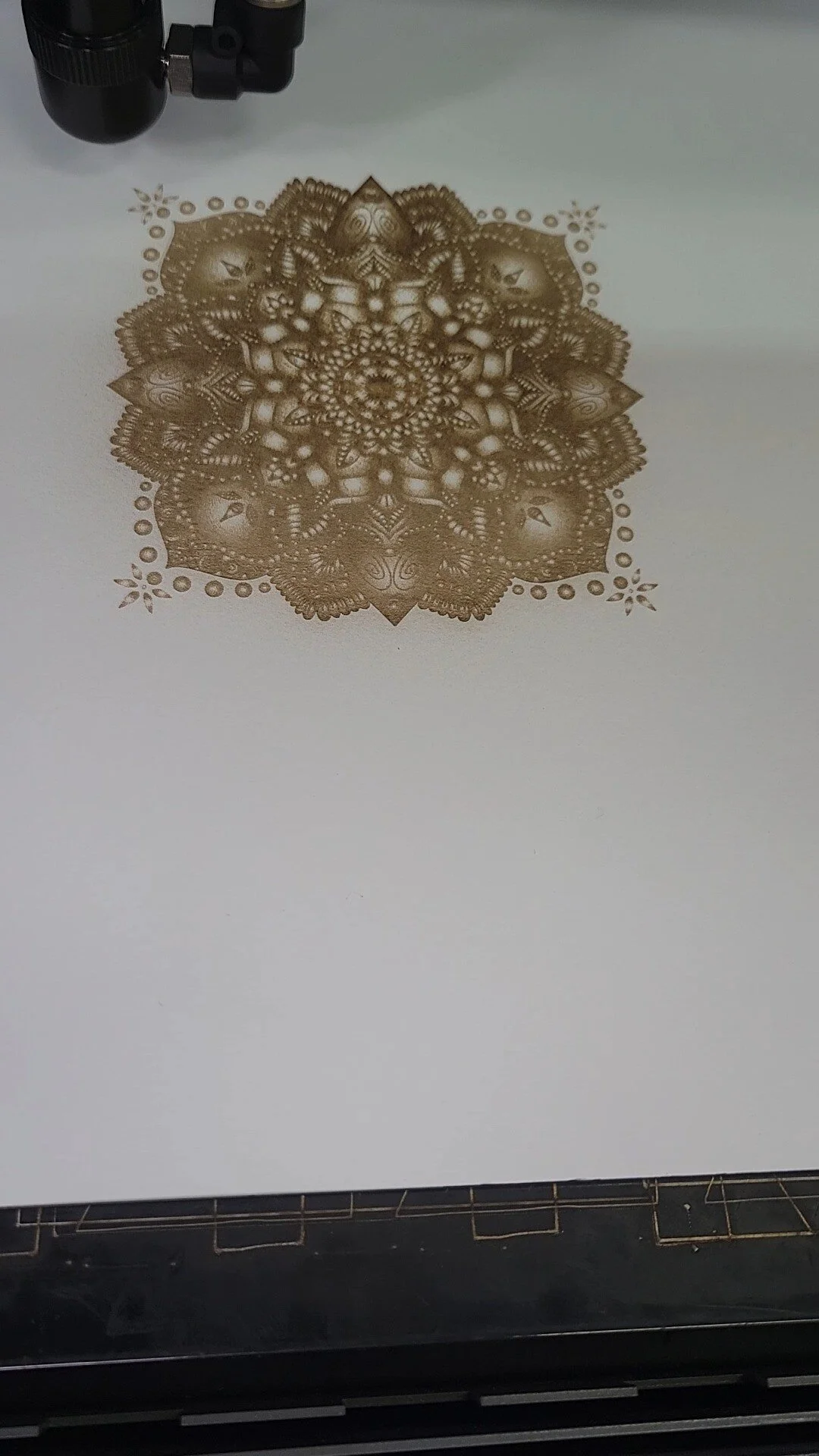
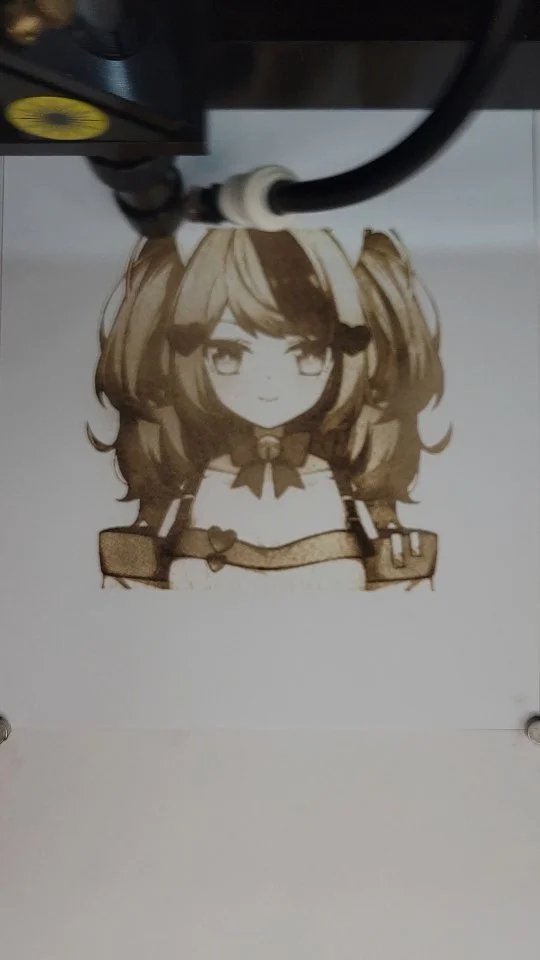
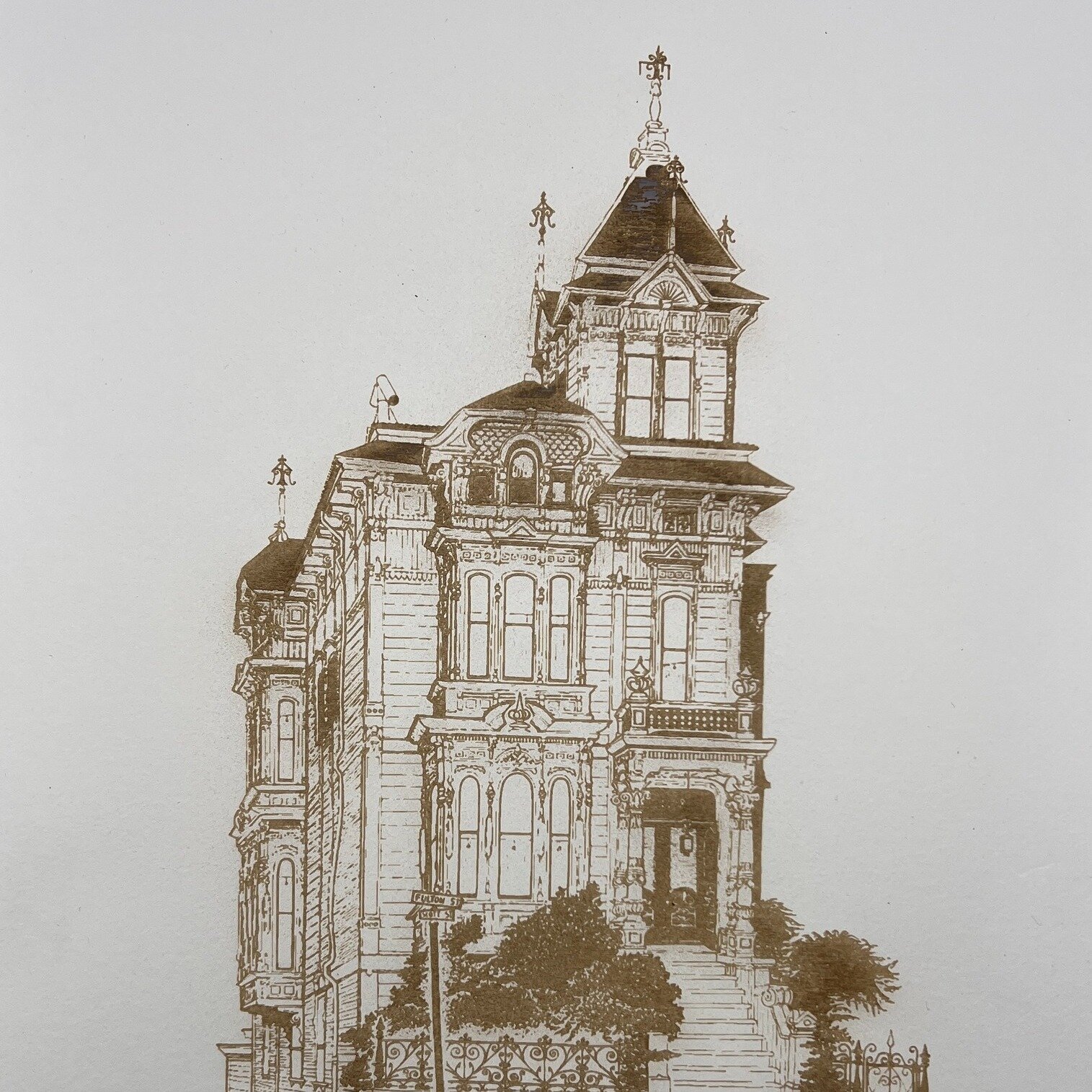
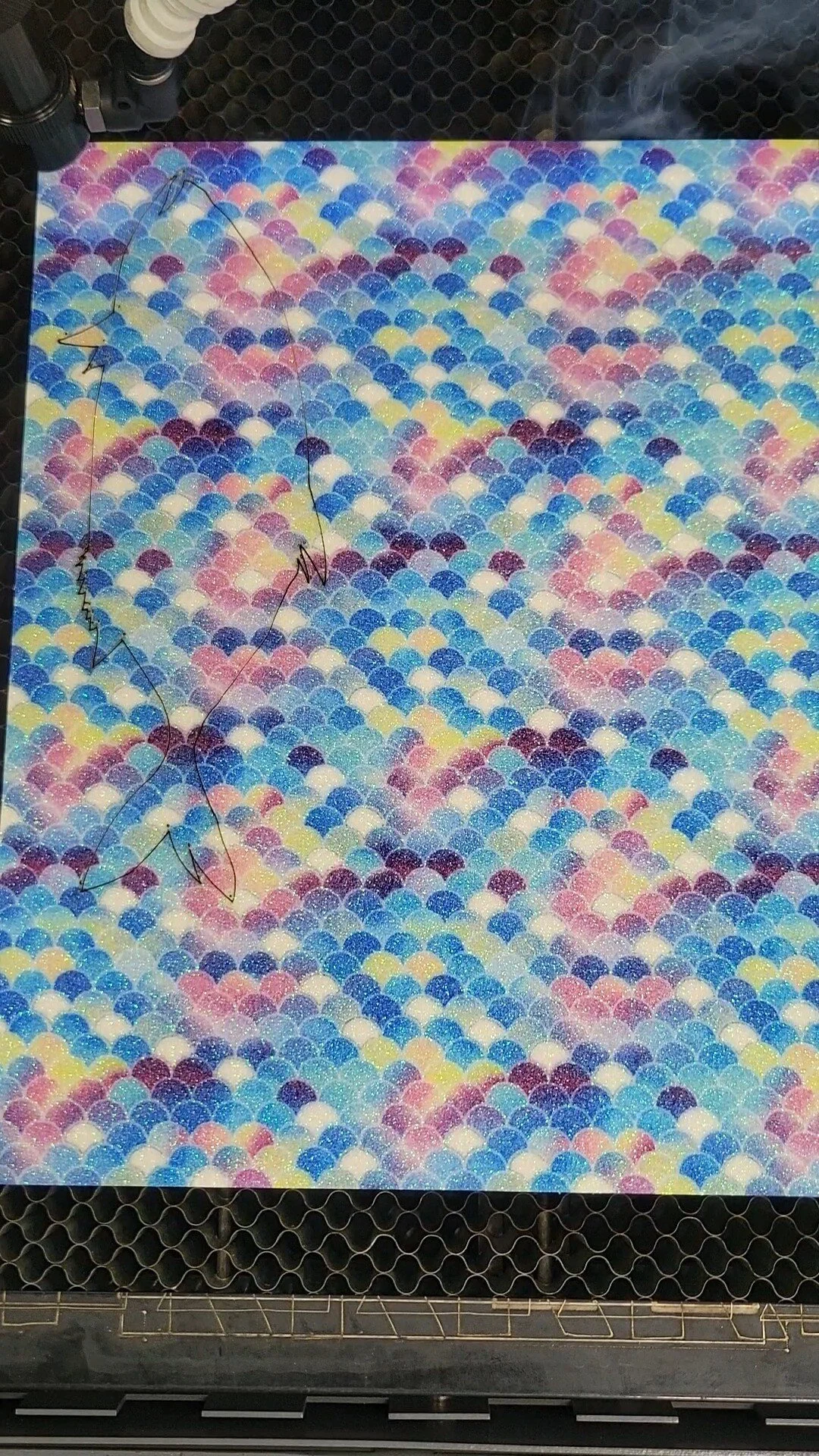
Cutting goes through the material; engraving marks the surface. - Which materials are safe to cut?
Common options include acrylic, wood, cardboard, some fabrics, and other laser-safe materials. Avoid PVC and unknown plastics. - Why won’t JPEG or PNG work for cutting?
They don’t contain paths. Laser cutters need vector files like AI, DXF, or PDF. - What software should I use?
Illustrator or LightBurn are common choices. Export clean vectors at the correct scale. - Any quick tips for cleaner results?
Use the right material, nest parts to save stock, keep optics clean, and choose sensible power/speed settings.
How to Prepare Your Files for Laser Cutting
Getting your design file ready for laser cutting isn't complicated, but a few key steps can save you time, money, and frustration. Whether you're working with vector graphics or preparing your first project, understanding file requirements upfront means faster turnaround and better results.
Use Vector Formats, Not Raster Images
Laser cutting software reads vector files—think Adobe Illustrator, CorelDRAW, or Inkscape. These formats store shapes as mathematical paths, not pixels, so they scale perfectly to any size without loss of quality. Common vector formats include .ai, .pdf, .eps, .dxf, and .svg. If your design is in Photoshop or PNG format, you'll need to convert or redraw it as a vector first. Raster images can be used for engraving, but cutting always requires vectors.
Set Up Your Layers Correctly
Most laser software uses layers or color-coding to distinguish between cutting and engraving operations. Typically, red lines indicate cuts and other colors indicate engravings. Before you send your file, confirm with your laser shop which color scheme they use. Make sure your cut paths are on a separate layer or color from any engraved details. Clean, organized files speed up the process and reduce the chance of mistakes.
Account for Kerf (Material Loss)
The laser beam has a width—usually around 0.1mm to 0.15mm depending on your material. This width removes material as it cuts, an amount called "kerf." If you're designing precise parts that need to fit together, account for kerf in your measurements. For example, if you want a box with interlocking sides, slightly adjust your slot sizes. Your laser shop can advise on kerf amounts for your specific material and equipment.
Double-Check Your Dimensions
Verify that your file dimensions match your intended output size. If you designed a 12-inch sign but your artboard is set to 12 feet, you'll have a problem. Include dimensions in your file or in a note to your shop. Also confirm your material will fit in the cutting area—American Laser Cutter's largest machines handle pieces up to 4' × 5', but if you're cutting multiple items, the arrangement matters.
Simplify and Weld Where Needed
Remove any unnecessary points, overlapping lines, or hidden objects from your design. Duplicate paths or stray lines can confuse laser software and cause unexpected results. If you have shapes that should be one unified cut, weld or combine them into a single path. Simple, clean files process faster and cut cleaner.
Ready to send your design to a professional laser shop? Visit americanlaserco.com to discuss your project and get expert guidance on file setup.
LASER CUTTING RESOURCES
This website is fantastic to pick up parts for your laser cutter.
This is a fantastic replacement software for laser cutters
https://lightburnsoftware.com/
This is a link to RdWorks software
https://www.ruidacontroller.com/download/
rescue files for RDworks and lightburn (still adding files)