Laser 101 · File & design
Vector vs raster: the two things a laser does.
A laser cutter does two different jobs — vector cutting and raster engraving. Knowing which is which is the key to setting up a file correctly.
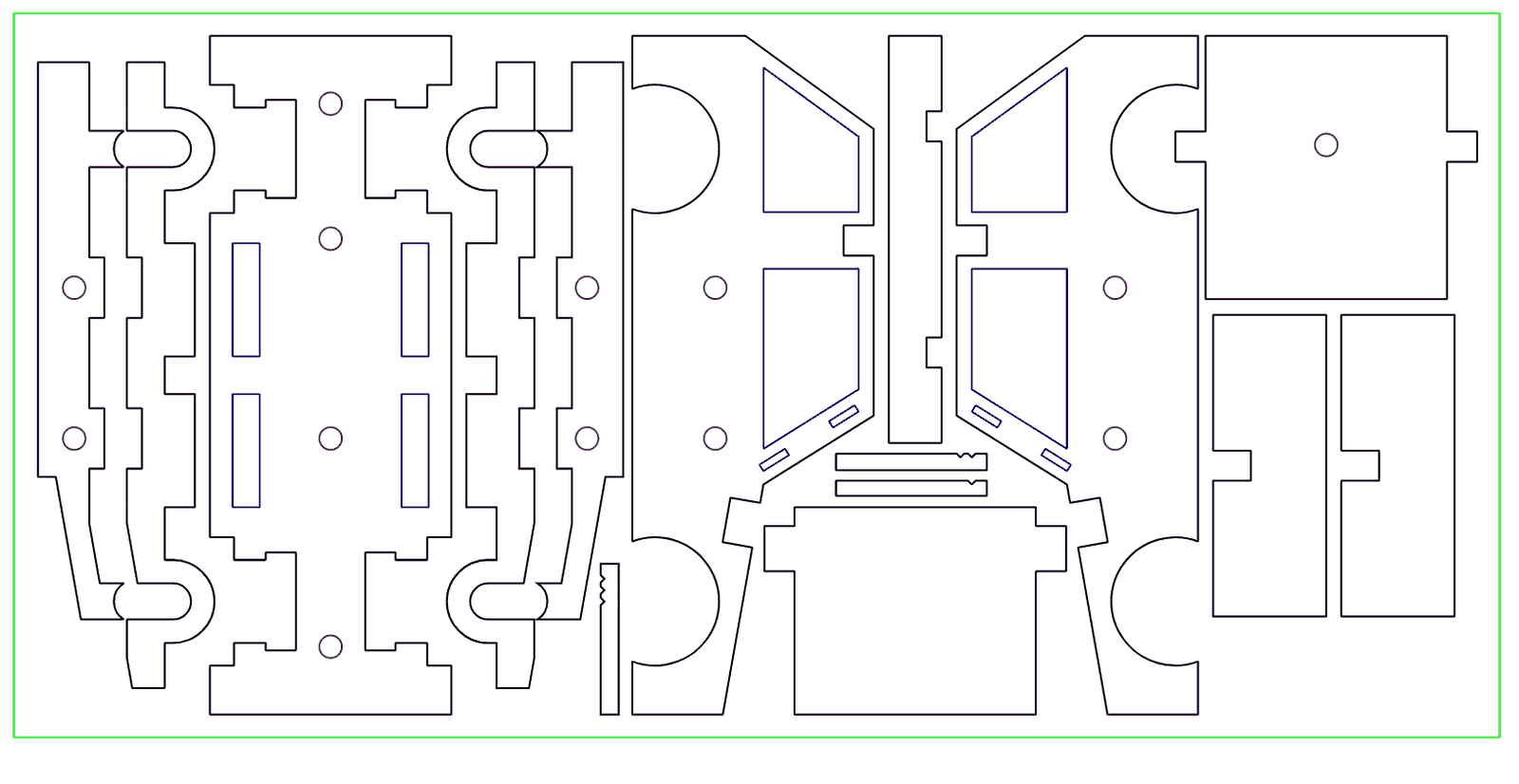
Two completely different kinds of file
Almost every file-prep problem in laser work comes down to one distinction: vector versus raster. A vector file describes artwork as mathematical paths — lines, curves, and shapes. A raster file describes it as a grid of pixels, like a photograph.
They are not interchangeable, and the laser treats them in fundamentally different ways.
What the laser does with vector
The laser follows a vector path. That is what makes cutting and scoring possible — the beam traces the line you drew. Vector artwork is also used for crisp line engraving and outlined lettering.
Vector files come from design and CAD software and arrive as AI, DXF, or PDF. If a job needs to be cut, the artwork must be true vector geometry — the cut lines have to be real paths the beam can follow.
What the laser does with raster
For a raster image, the laser sweeps back and forth across the area like an inkjet printhead, burning each spot lighter or darker to reproduce the picture. This is how photographs and shaded artwork get engraved.
Raster files are PNG and JPG. They are perfect for engraving an image onto wood, acrylic, or leather — but a laser cannot cut a raster file, because there is no path to follow, only pixels.
Which one to send
The rule is simple. If something needs to be cut or scored, send vector (AI, DXF, PDF). If you want a photo or shaded image engraved, raster (PNG, JPG) is fine. For a logo, vector is strongly preferred even for engraving — it stays razor-sharp at any size, while a raster logo can look soft or jagged.
The most common rejection we see is a JPG or PNG sent for a cut job. There is nothing in it for the beam to follow.
What if you only have a raster file
It happens often — all you have is a logo screenshot or a JPG. Simple, clean artwork can be traced into vector quickly. Detailed or messy art needs to be redrawn properly, which is what our file-fixing service is for ($40/hr, only billed after you approve). Send what you have and we will tell you exactly what it needs.
Common questions
Can a laser cut a JPG or PNG?
No. JPG and PNG are raster (pixel) files with no paths to follow. Cutting needs vector artwork — AI, DXF, or PDF. Raster files are fine for engraving photos, just not for cutting.
What is a vector file?
A file that describes artwork as mathematical paths — lines and curves — rather than pixels. AI, DXF, and PDF are vector formats, and they are what the laser follows to cut and score.
What file should I send for cutting?
A vector file: AI, DXF, or PDF, with cut lines as real paths at 1:1 scale. That is what the beam traces.
Can you engrave a photo?
Yes — photo engraving uses a raster file (PNG or JPG). The laser sweeps the area and varies the burn to reproduce the image.
What if I only have a raster logo?
Send it over. Simple artwork can be traced to vector quickly; complex artwork may need redrawing through our file-fixing service. We will tell you which applies before any work is billed.
Have a file ready?
Industrial CO₂ lasers, beds up to 46 by 58 inches, in downtown Los Angeles. A real person checks every job.