Laser 101 · File & design
How to prepare files for laser cutting.
A file that is set up right sails through the queue. Here is the format to use, a quick cleanup checklist, and the mistakes that get files sent back.
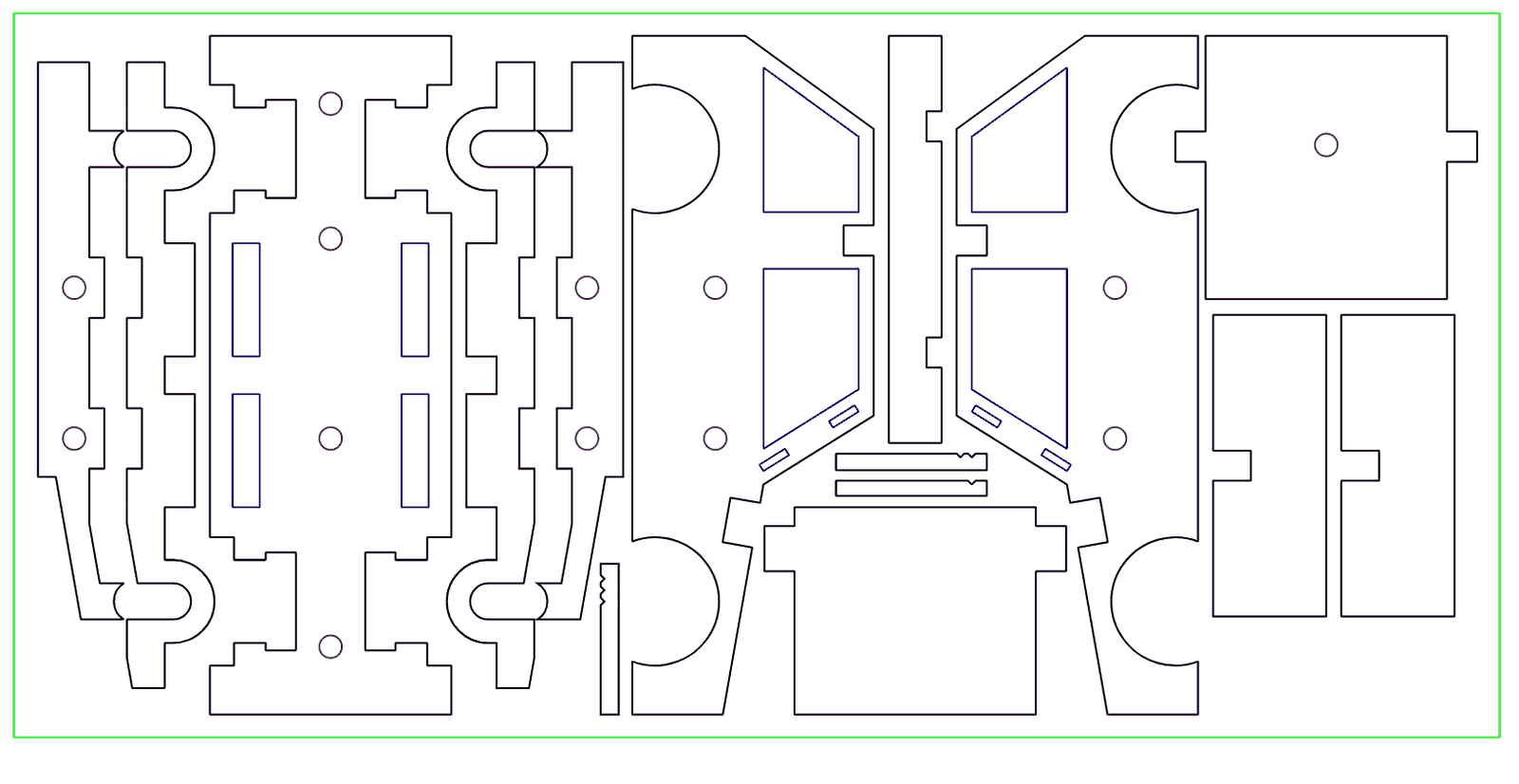
Most rejections come down to a short list
When a file gets sent back before quoting, it is almost never something exotic — it is one of a handful of common, fixable issues. Get these right and your file moves straight through the queue instead of bouncing back for a fix.
Send vector artwork at 1:1 scale
Cutting and scoring need vector files — AI, DXF, or PDF. A JPG or PNG has no path for the beam to follow and cannot be cut (raster images are fine only for engraved photos).
Draw everything at real-world size, 1:1. We do not auto-scale a file, because guessing the intended size is how parts come out wrong. If your piece is 6 inches wide, it should be 6 inches wide in the file.
Convert text to outlines
Fonts do not travel with a file. If text is left as live text and we do not have that exact font installed, it reflows or substitutes — and your lettering changes. Before exporting, convert all text to outlines (also called ‘create curves’ or ‘convert to path’). Once outlined, the letters are shapes and will cut exactly as drawn.
Hairline strokes, one layer, mapped by color
Set cut and score lines to a hairline weight (0.001″ or less). A thick stroke reads as a filled shape, not a single cut path, so the laser tries to engrave the outline instead of cutting it.
Keep the artwork on a single layer, and map each operation to its own color — one color for cut, one for score, a fill for engrave. That is how we tell a fold line from a cut without guessing.
Clean up the file before exporting
Two last checks. Remove hidden objects — geometry hidden under other shapes still gets cut, so select all and delete anything that should not be there, including stray points and duplicate lines stacked on top of each other.
And confirm your units, especially for DXF exports: set the file to millimeters before exporting, since a file that should be inches can import at 25× scale. A clean, correctly-scaled, outlined, color-mapped file is a file that quotes fast and cuts right the first time.
Common questions
Why do laser cutting files get rejected?
Almost always one of a few fixable issues: a raster file sent for cutting, text not outlined, thick stroke weights, wrong units, or hidden objects left in the file.
What file format should I use?
AI, DXF, or PDF for anything that will be cut or scored — vector only, at 1:1 scale. PNG or JPG only for engraved photos.
Why do I need to convert text to outlines?
Fonts do not travel with a file. If the exact font is not installed, live text reflows or substitutes. Outlined text is shapes, so it cuts exactly as drawn.
What stroke weight should cut lines be?
Hairline — 0.001″ or less. A thick stroke reads as a filled shape and gets engraved instead of cut.
What if my file is not quite right?
Send it anyway — we flag exactly what needs fixing, and our file-fixing service ($40/hr, billed only after you approve) can clean it up for you.
Ready to send your file?
Industrial CO₂ lasers, beds up to 46 by 58 inches, in downtown Los Angeles. A real person checks every job.